# MinIO on macOS: Local S3 Bucket Setup with BucketMate
> Install MinIO and the mc client on macOS with Homebrew, start a local S3 server, create a bucket, and browse it in a Mac S3 GUI. Copy-ready commands included.
Canonical: https://www.bucketmate.app/blogs/minio-macos-s3-bucket-setup
**Short answer:** install the MinIO client on Mac with `brew install minio/stable/mc`, and the MinIO server with `brew install minio/stable/minio`. Do not run `brew install mc` - that installs Midnight Commander, a different tool that also uses the `mc` command.
MinIO is a fast way to spin up an S3-compatible object store on macOS so you can work offline, test APIs without touching production, and keep a local cache of critical data. Pair it with a smart sync routine and you gain a hybrid workflow where your Mac mirrors a cloud bucket while BucketMate gives you a native UI for day-to-day file ops.
**Quick start:** install the MinIO server and the `mc` client with Homebrew, start a server, and create a bucket:
```shell
brew install minio/stable/minio minio/stable/mc
minio server ~/minio-data --console-address ":9001"
mc alias set local http://127.0.0.1:9000 minioadmin minioadmin
mc mb local/my-bucket
```
The S3 API runs on `http://127.0.0.1:9000` and the web console on `http://127.0.0.1:9001`. The rest of this guide covers a safer setup with your own credentials, connecting a GUI, and syncing with a cloud bucket.
> Heads-up: in 2025 MinIO stripped most admin features out of the community web Console, leaving a basic object browser, and the community repo is now in maintenance mode. Use `mc` for admin tasks and a desktop S3 GUI like [BucketMate](https://www.bucketmate.app/?utm_source=blog&utm_medium=guide&utm_campaign=minio-macos) for daily browsing, uploads, and previews.
## Why pair MinIO with a Mac and BucketMate
- Offline-first reliability: Keep product demos, build artifacts, or AI models available without an internet connection while still syncing changes back to AWS S3, Cloudflare R2, Wasabi, or Backblaze B2.
- Production-safe testing: Point staging apps or integration tests at the local endpoint to validate IAM policies, lifecycle rules, and SDK calls before deploying.
- Friendly management: BucketMate’s native macOS app lists objects, previews files, and lets you drag and drop between local MinIO and remote cloud providers without scripts.
## 1. Install MinIO client (mc) and server with Homebrew
MinIO ships as two single binaries: `minio` (the server) and `mc` (the MinIO client). Install them from the official MinIO tap.
### Install the MinIO client (mc) with brew
```shell
brew install minio/stable/mc
mc --version
```
If you only need to talk to a remote MinIO, AWS S3, or R2 endpoint, the client is all you need. Homebrew core also ships it as `brew install minio-mc`.
> `brew install mc` installs Midnight Commander, not the MinIO client. If you already have Midnight Commander, the two `mc` binaries conflict - uninstall one or call the MinIO client by its full path.
### Install the MinIO server with brew
```shell
brew install minio/stable/minio
minio --version
```
Homebrew core also has `brew install minio`. Both upstream repositories are archived, so Homebrew marks these formulas as deprecated - they still install and run fine for local development, but do not expect new releases.
Prefer manual control? Download the latest release from [MinIO Downloads](https://min.io/download) and move the binaries into `/usr/local/bin/`. Either path gives you the same commands used throughout this tutorial.
## 2. Create a dedicated data directory
Choose a persistent location for object data so the MinIO process can restart without losing state. The examples below assume `~/minio-data`.
```shell
mkdir -p ~/minio-data
```
You can target an external SSD or network volume if you want more space or redundancy.
## 3. Launch MinIO on macOS
Start MinIO with explicit addresses so you know which ports to allow through the firewall.
```shell
minio server --address :9000 --console-address :9001 ~/minio-data
```
Open `http://127.0.0.1:9001` in a browser to reach the web console. The default credentials are `minioadmin` for both username and password. Change them immediately in production-like setups. Recent community builds only show an object browser there - users, policies, and access keys are managed with `mc admin`.
If you need TLS, generate certificates under `~/minio-certs` and restart MinIO with `--certs-dir ~/minio-certs`. BucketMate will trust the certificate as long as it matches the hostname you configure inside the app.
## 4. Configure the MinIO client (mc)
The `mc` CLI mirrors the AWS S3 CLI but works across any S3-compatible target. Set up an alias for your local server, then create a bucket dedicated to offline work.
```shell
mc alias set localminio http://127.0.0.1:9000 minioadmin minioadmin
mc mb localminio/offline-projects
```
Keep the alias names simple because they appear throughout mirror commands and scripts.
## 5. Connect BucketMate to your local MinIO
1. Launch BucketMate on macOS.
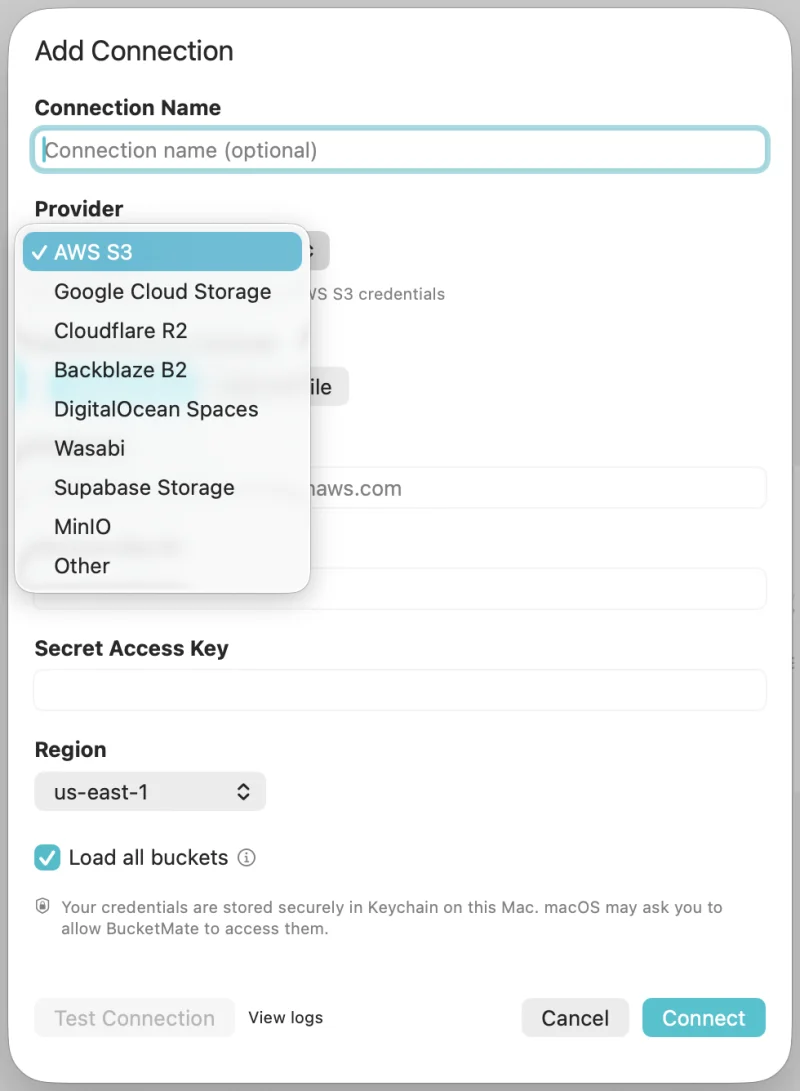
2. Click Add connection and choose MinIO as the provider (or Other).
3. Enter the endpoint `http://127.0.0.1:9000` (or `https://` if you enabled TLS).
4. Supply the access key, secret key, and bucket you created above.
5. Tap Test connection and then Save to add it to your sidebar.
Choose MinIO (or Other) in the provider list, then enter your local endpoint.
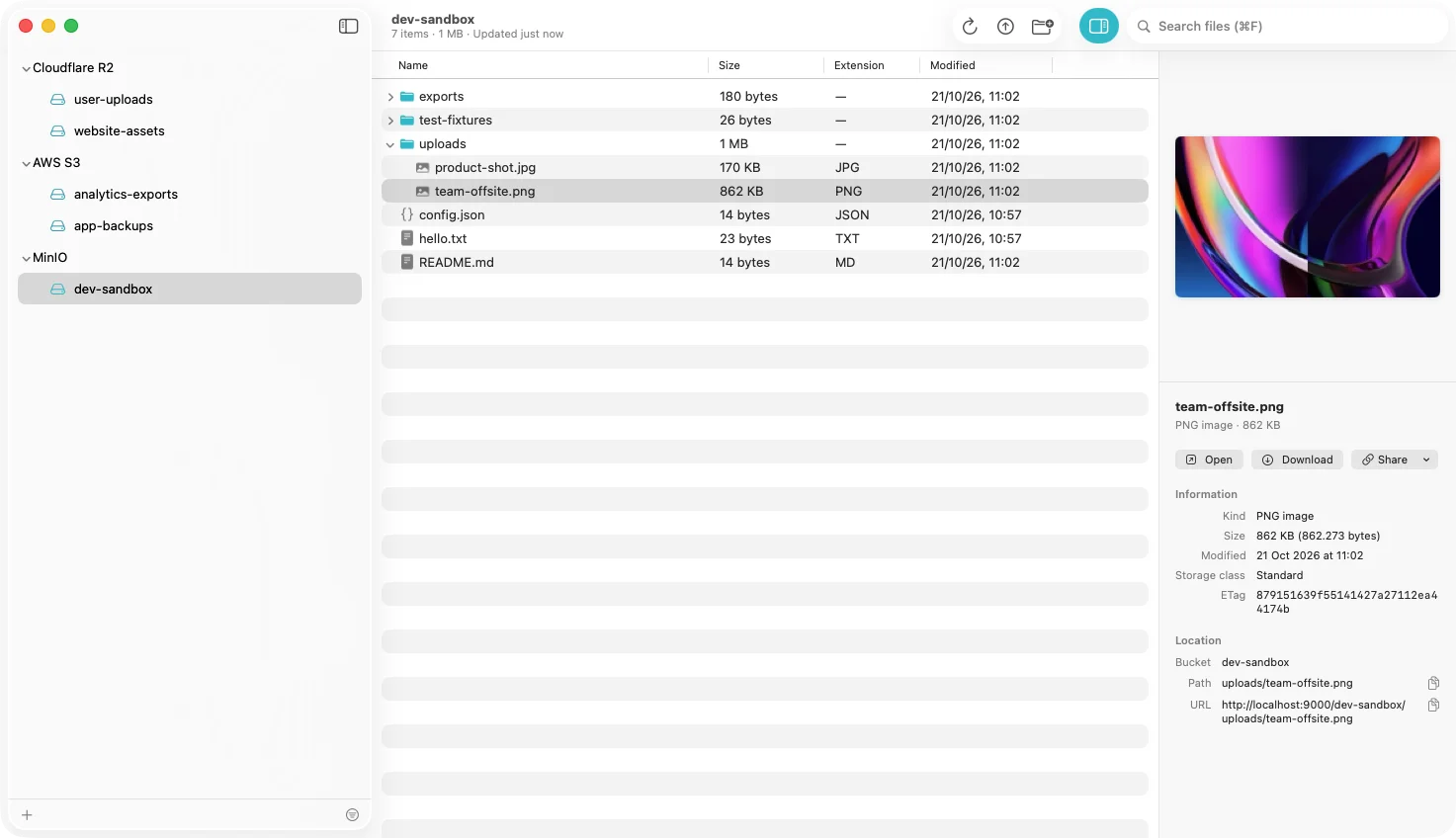
BucketMate now treats your MinIO server like any other cloud bucket. Drag a folder into the window to upload objects, rename files inline, and preview media without reaching for the CLI.
Local MinIO sits next to R2 and AWS in the same sidebar.
## 6. Keep MinIO in sync with a cloud bucket
Hybrid backup is where MinIO shines. Mirroring lets you operate locally while keeping a canonical copy in cloud storage.
### A. Prep cloud credentials
Create a second alias that points at your provider of choice. Replace the endpoint and credentials with the values for AWS S3, Cloudflare R2, Wasabi, or Backblaze B2.
```shell
mc alias set cloudbackup https://s3.amazonaws.com AKIA... wJalrXUtnFEMI...
```
Use environment variables or a password manager to store secrets when you move from demos to production.
### B. Run one-time seeding
Push your existing offline folder into MinIO so both locations start with the same data.
```shell
mc mirror ~/Projects/offline-cache localminio/offline-projects --overwrite --watch
```
The `--watch` flag keeps the process running, so new files or edits propagate in near real-time.
### C. Mirror to the cloud provider
Once your local bucket is up-to-date, mirror it to the remote alias.
```shell
mc mirror localminio/offline-projects cloudbackup/prod-backups --overwrite
```
Schedule the command with `launchctl`, `cron`, or a CI runner depending on how frequently you want to back up.
## 7. Generate tailor-made commands
Every team tweaks paths, aliases, and TLS preferences. Use the interactive planner below to produce commands that match your setup exactly, then copy them into your shell scripts or runbooks.
## 8. Automate checks and lifecycle policies
- Health checks: Use `mc admin info localminio` inside a monitoring script to verify drive space and uptime. Pair it with a simple `curl` against the `/minio/health/ready` endpoint for readiness probes.
- Lifecycle rules: Create bucket policies that expire build artifacts or move stale releases into Glacier or R2 object lifecycle equivalents.
- Integrity scans: Schedule periodic `mc diff localminio/offline-projects cloudbackup/prod-backups` runs and alert on mismatches so you can react before gaps grow.
## 9. Troubleshooting tips for macOS
- Port conflicts: If `9000` or `9001` are taken, adjust the ports in the server command and within BucketMate. The planner above regenerates commands instantly when you change the numbers.
- Permissions: When storing data on external drives, grant Full Disk Access to the terminal and BucketMate so they can read and write without prompts.
- Firewall prompts: Approve the first-run firewall dialog so incoming connections on the chosen port stay open. For TLS, add the certificate to the macOS Keychain and mark it as trusted.
## 10. Keep your hybrid stack organized
- Label buckets clearly inside BucketMate so teammates know which connection is local versus cloud.
- Use consistent prefixes (for example `team-name/environment/data-type/`) so lifecycle rules and sync filters stay predictable.
- Export your BucketMate connections as encrypted backups to share with trusted teammates or to rebuild a machine quickly.
## FAQ
### How do I install the MinIO client on Mac with brew?
Run `brew install minio/stable/mc`, then `mc --version` to confirm. `brew install minio-mc` from Homebrew core works too. Do not use `brew install mc`, which installs Midnight Commander.
### How do I install the MinIO server with brew?
Run `brew install minio/stable/minio` (or `brew install minio`), then start it with `minio server ~/minio-data --console-address ":9001"`.
### Why does brew install mc give me Midnight Commander?
In Homebrew, `mc` is an alias for the Midnight Commander file manager. The MinIO client lives in the `minio/stable` tap or under the `minio-mc` formula name.
### Is there a GUI for MinIO on Mac now that the Console lost its admin features?
Yes. Any S3-compatible desktop client works with MinIO. [BucketMate](https://www.bucketmate.app/?utm_source=blog&utm_medium=guide&utm_campaign=minio-macos) connects to local or remote MinIO next to AWS S3 and Cloudflare R2, with drag-and-drop uploads, previews, and share links. Keep `mc admin` for users and policies.
### What are the default MinIO credentials?
`minioadmin` / `minioadmin`. Set `MINIO_ROOT_USER` and `MINIO_ROOT_PASSWORD` before starting the server for anything beyond a throwaway test.
## Next steps
You now have a local S3-compatible bucket on macOS, synced to the cloud, and visible inside BucketMate. Continue exploring hybrid storage patterns with the [Cloudflare R2 setup guide](/blogs/s3-compatible-setup-cloudflare-r2) or compare providers in the [R2 vs S3 breakdown](/blogs/cloudflare-r2-vs-aws-s3). For connection fields and MinIO-specific errors in BucketMate, see the [Connect MinIO docs](https://docs.bucketmate.app/macos/providers/connect-minio) or the [MinIO GUI client page](/s3-client/minio).