AWS S3: SDK, CLI & BucketMate Integration Guide (2026)
Want a single playbook for Amazon S3 that covers the AWS CLI, rclone, s3cmd, and the AWS SDK for JavaScript - and finishes by putting your bucket inside BucketMate? This guide walks through credentials, environment variables, and copy-pasteable commands so you can move files fast and keep a native view for day-to-day work.
1) Choose your authentication method
AWS recommends temporary credentials through IAM Identity Center for human users. Use a long-lived IAM access key only when an AWS profile is not available.
AWS profile and IAM Identity Center (recommended)
- Configure a profile with
aws configure sso --profile prod-s3. - Sign in with
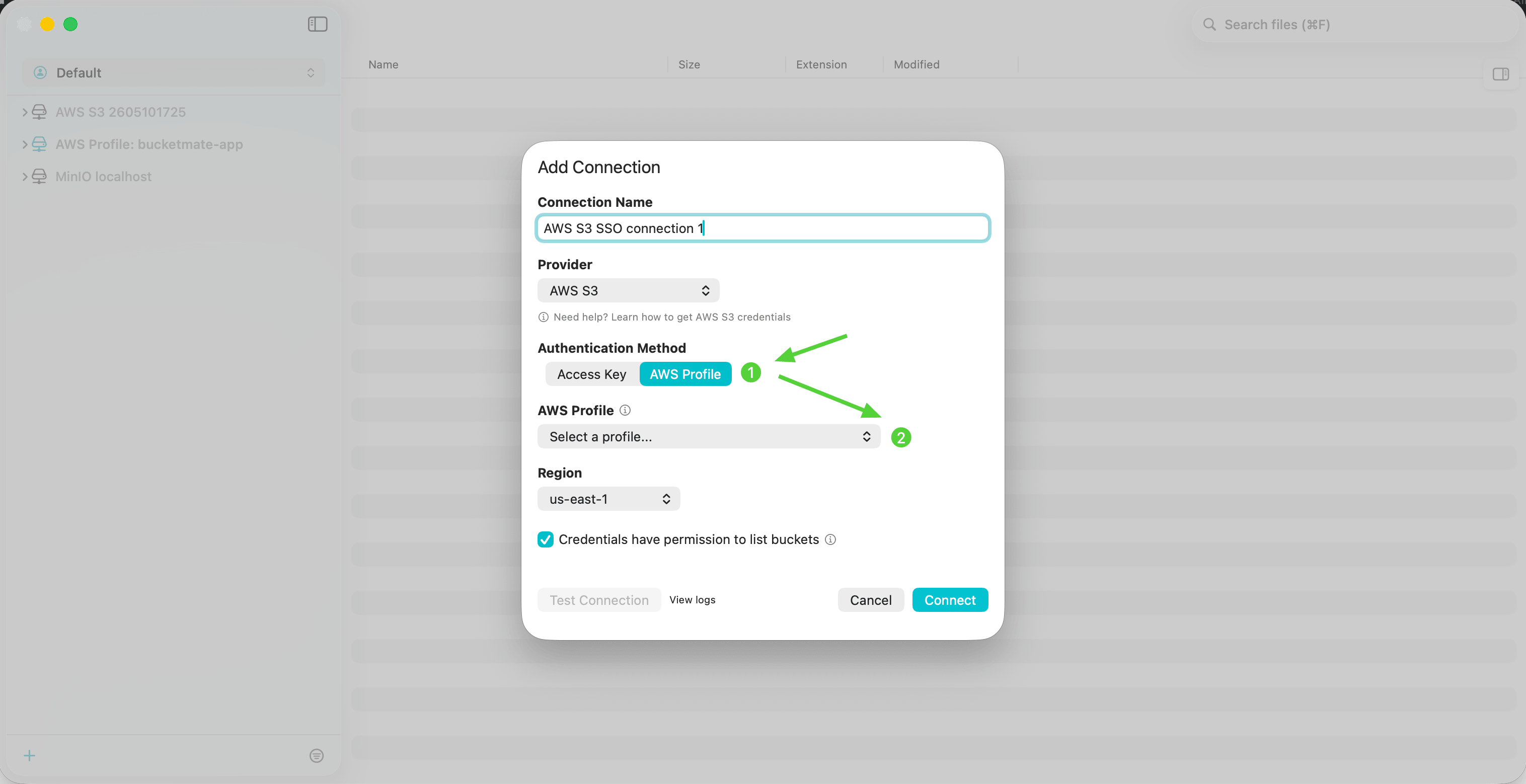
aws sso login --profile prod-s3. - In BucketMate for macOS, choose AWS Profile, select
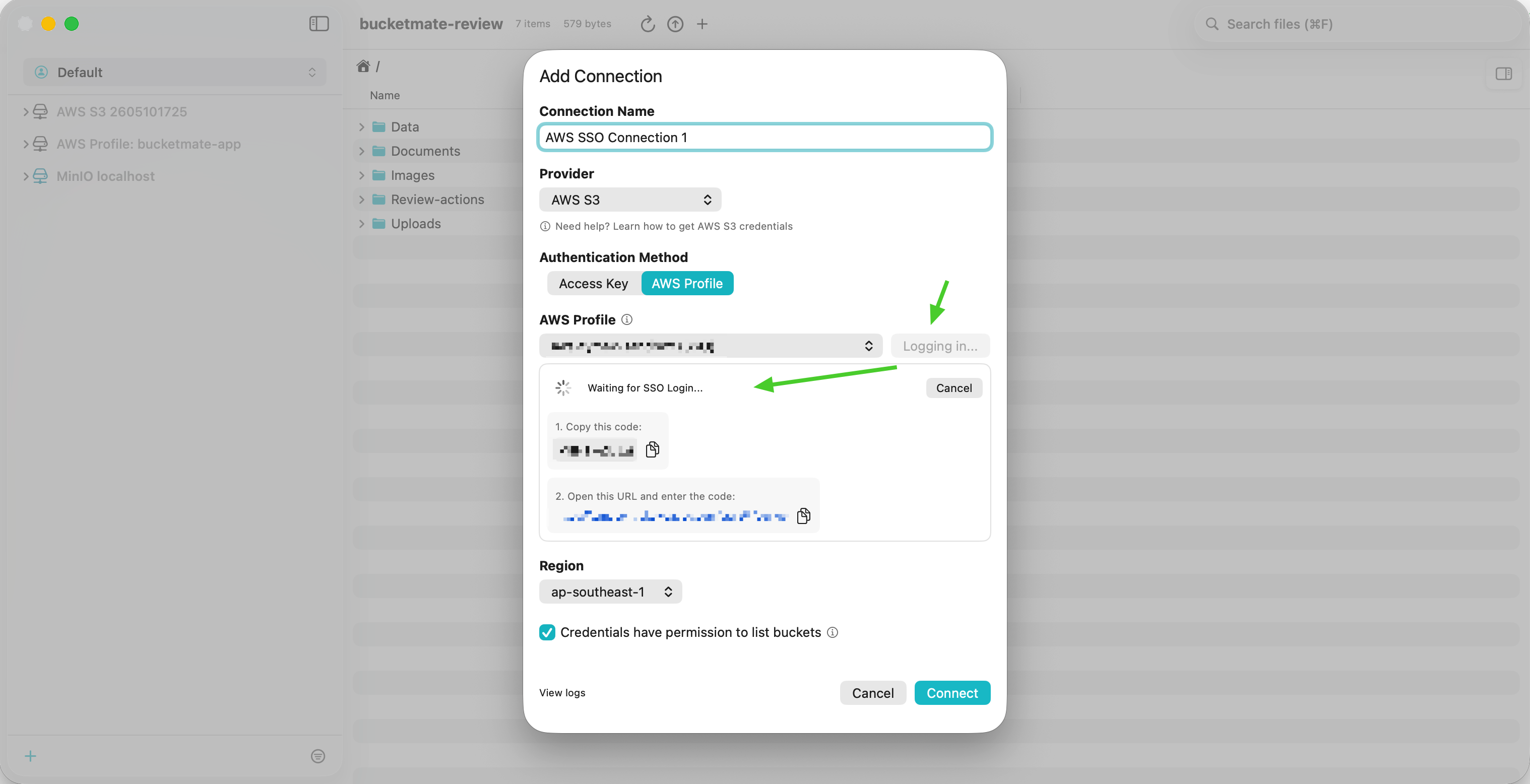
prod-s3, and use Login with SSO when the session needs authentication.
BucketMate reads profiles from ~/.aws/config and ~/.aws/credentials, so you do not need to copy temporary access keys into the app. When the SSO session expires, log in again through the profile flow.
IAM access key fallback
- In the IAM console, open Users, choose Create user, and enter a purpose-specific name such as
bucketmate-editor. - Add permissions and create an inline policy using the JSON editor.
- Paste a least-privilege policy for the bucket:
{
  "Version": "2012-10-17",
  "Statement": [
    {
      "Effect": "Allow",
      "Action": ["s3:ListBucket"],
      "Resource": "arn:aws:s3:::my-s3-bucket"
    },
    {
      "Effect": "Allow",
      "Action": [
        "s3:GetObject",
        "s3:PutObject",
        "s3:DeleteObject"
      ],
      "Resource": "arn:aws:s3:::my-s3-bucket/*"
    }
  ]
}
Replace my-s3-bucket with your bucket name. This policy intentionally limits access to one bucket.
- Finish creating the user, open Security credentials, and choose Create access key.
- Select the use case that matches your setup and confirm that you understand the security recommendation.
- Download the
.csvcontaining the Access key ID and Secret access key. AWS shows the secret only once. - Note the bucket region, such as
us-east-1.
In BucketMate, turn off "Credentials have permission to list buckets" and enter the bucket name because this scoped policy does not grant account-wide bucket listing.
🔐 Never create access keys for the AWS root user. Prefer IAM Identity Center, temporary credentials, and least-privilege permissions.
2) Configure the AWS CLI
The AWS CLI is still the quickest way to sanity-check your credentials before touching other tooling.
export AWS_ACCESS_KEY_ID="<your-access-key-id>"
export AWS_SECRET_ACCESS_KEY="<your-secret-access-key>"
export AWS_DEFAULT_REGION="us-east-1"  # match your bucket region
# Optional temporary credentials:
# export AWS_SESSION_TOKEN="<your-session-token>"
List buckets and copy an object:
aws s3 ls

aws s3 cp ./brand-guide.pdf s3://my-s3-bucket/docs/brand-guide.pdf
Prefer profiles? Run aws configure --profile prod-s3 once, then set export AWS_PROFILE=prod-s3 when you need it.
3) rclone: high-throughput syncs
rclone ships with an S3 backend that supports every region and storage class. Configure it like this:
rclone config
# n) New remote → name it "awsprod"
# s) Choose "Amazon S3 Compliant Storage Providers"
# 1) Pick "Amazon S3"
# Supply the access key, secret, and region
# Leave the endpoint blank (the AWS default will be used)
# Save

# Verify:
rclone ls awsprod:my-s3-bucket

# Sync a folder with server-side multipart uploads:
rclone sync ./dist awsprod:my-s3-bucket/releases --fast-list --s3-chunk-size 64M
Performance tip: set --s3-upload-concurrency 16 for large batches to saturate your bandwidth.
4) s3cmd: script-friendly uploads
s3cmd is perfect when you want a simple .ini config and POSIX-like commands.
s3cmd --configure
# Access key: <your-access-key-id>
# Secret key: <your-secret-access-key>
# Default Region: us-east-1
# S3 Endpoint: s3.amazonaws.com (leave blank to accept default)
# Use HTTPS [Yes]
# Save settings? [Yes]

# Usage examples:
s3cmd ls s3://my-s3-bucket
s3cmd put hero.png s3://my-s3-bucket/assets/hero.png --acl-public
To avoid typing flags in CI/CD, store the config at ~/.s3cfg and load it with s3cmd --config ~/.s3cfg ....
5) AWS SDK for JavaScript (v3)
Ship features using the official SDK and modern async/await ergonomics.
import { S3Client, PutObjectCommand } from "@aws-sdk/client-s3";

const s3 = new S3Client({
  region: "us-east-1",
  credentials: {
    accessKeyId: process.env.AWS_ACCESS_KEY_ID!,
    secretAccessKey: process.env.AWS_SECRET_ACCESS_KEY!,
    // sessionToken: process.env.AWS_SESSION_TOKEN, // if you use temporary credentials
  },
});

await s3.send(new PutObjectCommand({
  Bucket: "my-s3-bucket",
  Key: "marketing/welcome.txt",
  Body: "Hello from Amazon S3!",
  ContentType: "text/plain",
}));
Checklist for production:
- Use
AWS_PROFILEor IAM roles when running on EC2/Lambda so that credentials rotate automatically. - Set
ContentTypeandCacheControlheaders for assets that go to CDNs. - Wrap calls in retries with exponential backoff for high-volume ingestion.
6) Browse S3 visually with BucketMate
BucketMate is a native macOS client for S3-compatible storage. It keeps your buckets a click away with multi-select, drag-and-drop uploads, and instant previews.
- Download BucketMate and launch the app.
- Click Add connection → Amazon S3.
- Choose AWS Profile to use a profile from
~/.aws/configor~/.aws/credentials. - Select the profile. For SSO profiles, use Login with SSO and finish the browser login.
- For an SSO profile, choose Login with SSO. BucketMate opens your browser automatically. Enter the displayed verification code and finish signing in.
- To use key-based authentication instead, choose Access Key, enter the access key ID and secret, and add the session token when required.
- Choose the correct region and use Test connection.
- Save the connection to browse buckets, rename keys, and edit metadata using a native interface.
🧭 BucketMate remembers every connection, so your team can store multiple AWS accounts and S3-compatible services side by side.
Troubleshooting checklist
- AccessDenied: Confirm the IAM policy includes
s3:ListBucketfor the bucket ands3:GetObject/s3:PutObjectfor key prefixes. - Region mismatch: If uploads hang, double-check that the CLI/SDK region matches the bucket region exactly.
- SignatureDoesNotMatch: Ensure your device clock is in sync or enable automatic time (NTP).
- rclone connection errors: Re-run
rclone configand setlocation_constraintto the exact AWS region if prompted. - s3cmd SSL issues: Upgrade to the latest release or set
ca_certs_filein~/.s3cfgwhen behind a proxy.