How to Set Up HTTPS Localhost for MinIO on macOS
Running MinIO over HTTPS locally mirrors production security, satisfies browser requirements for modern web APIs, and lets you test S3 SDK calls that enforce TLS. This guide walks through generating trusted certificates with mkcert and configuring MinIO in Docker on macOS to serve objects over a secure connection.
TL;DR
# Command to setup HTTPS for MinIO on macOS
brew install mkcert nss
mkcert -install
mkcert localhost 127.0.0.1 ::1

mkdir -p ~/.minio/certs
cp localhost+2.pem ~/.minio/certs/public.crt
cp localhost+2-key.pem ~/.minio/certs/private.key

mkdir -p ~/minio-data

docker run --rm \
  -p 9000:9000 -p 9001:9001 \
  -v $HOME/minio-data:/data \
  -v $HOME/.minio/certs:/root/.minio/certs \
  minio/minio server /data --console-address ":9001"

# Config to connect to MinIO with BucketMate
- Provider: MinIO
- Endpoint: https://localhost:9000
- Access key: minioadmin
- Secret key: minioadmin
- Region: 'us-east-1'
Why enable HTTPS for local MinIO
- Modern web APIs: Service Workers, WebCrypto, and Secure Contexts require HTTPS - even on localhost when testing from a custom domain or LAN IP.
- SDK parity: The AWS SDK and tools like rclone can enforce TLS verification. Matching production behavior locally catches configuration bugs early.
- Mobile and cross-device testing: Devices connecting over your LAN need valid certificates to avoid security warnings and connection failures.
- BucketMate requirement: BucketMate only supports HTTPS connections - HTTP endpoints will not work. Setting up TLS on your local MinIO is required to use it with BucketMate.
1. Create trusted localhost certificates
Install mkcert and the nss package for Firefox trust store integration:
brew install mkcert nss
Create and install the local Certificate Authority into the macOS Keychain and browser trust stores:
mkcert -install
Generate certificates for localhost:
mkcert localhost 127.0.0.1 ::1
You will get two files in your current directory:
localhost+2.pem- the certificatelocalhost+2-key.pem- the private key
2. Create certs folder for MinIO
MinIO inside Docker expects certificates at /root/.minio/certs. Create the directory and copy the certificates with the required names:
mkdir -p ~/.minio/certs
cp localhost+2.pem ~/.minio/certs/public.crt
cp localhost+2-key.pem ~/.minio/certs/private.key
3. Create data directory for MinIO
Create a persistent location for object data:
mkdir -p ~/minio-data
4. Start MinIO container with certs mounted
Run MinIO in Docker with the certificates directory mounted:
docker run --rm \
  -p 9000:9000 -p 9001:9001 \
  -v $HOME/minio-data:/data \
  -v $HOME/.minio/certs:/root/.minio/certs \
  minio/minio server /data --console-address ":9001"
Check the startup output for confirmation that TLS is enabled:
API: https://0.0.0.0:9000
WebUI: https://0.0.0.0:9001
5. Access MinIO
- S3 API: https://localhost:9000
- Console: https://localhost:9001
Open the console URL in a browser. You should see a green padlock - no certificate warnings. The default credentials are minioadmin for both username and password.
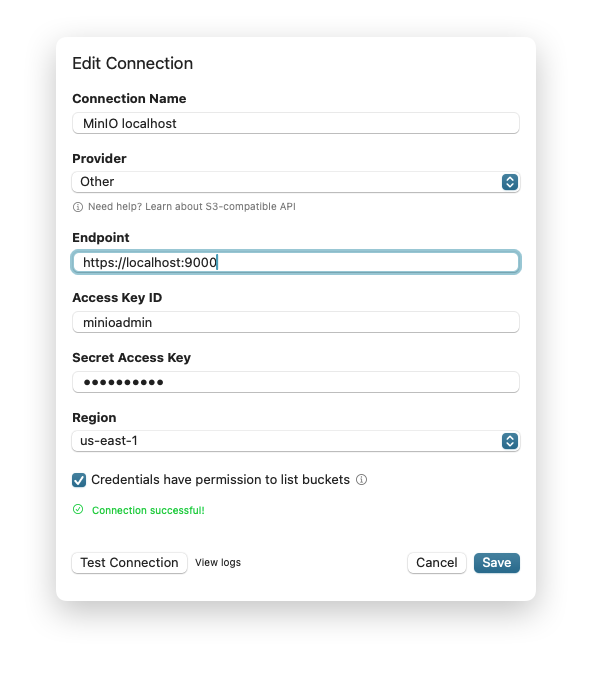
6. Connect BucketMate to HTTPS MinIO
- Click Add connection → Provider: Others.
- Enter the endpoint
https://localhost:9000. - Input your access key and secret key (default is
minioadmin/minioadmin). - Tap Test connection - BucketMate validates the certificate against the system trust store.
- Click Add connection to add the connection to your sidebar.
BucketMate uses AWS SDK, so it needs an HTTPS connection.
Why BucketMate for S3 management
BucketMate is a native macOS client for S3-compatible storage. It provides a native interface to browse, upload, and manage objects across multiple providers - including your local MinIO server.
Key features:
- Multi-provider support: Connect to AWS S3, Cloudflare R2, Backblaze B2, DigitalOcean Spaces, Wasabi, MinIO, and any S3-compatible endpoint from a single app.
- Drag-and-drop uploads: Move files between your Mac and buckets without CLI commands.
- Instant previews: View images, videos, PDFs, and text files directly in the app.
- Secure connections: BucketMate enforces HTTPS for all connections, ensuring your data is encrypted in transit.
Next steps
You now have a production-like HTTPS setup for MinIO on macOS using Docker. Explore syncing your secure local bucket to cloud storage with the MinIO sync guide or compare provider pricing in the R2 vs S3 breakdown.